
An item’s attributes may be modified after the item has been created. This will most commonly occur when an item is moving shelving locations, changing local duration or fine levels (or circ modifier), or adding an item alert, tag, or note.
Attributes may be modified one at a time, or multiple at a time.
There are a few areas in the web Client
- In the Staff Catalog > Holdings View
- In the Staff Catalog > Item Table
- In Item StatusItem Status allow syou to see the status of an item without having to go to the actual bibliographic record..
- On the Checkin Screen
- In an Item BucketThis is a virtual container of items. See also Record Buckets, Item Buckets, and User Buckets.
Each location has an Action option for editing the item or holdings. Regardless of where you initiate the process, the Holdings Editor will open.
Editing a Single Item #
Click on the white area of the attribute you wish to change.
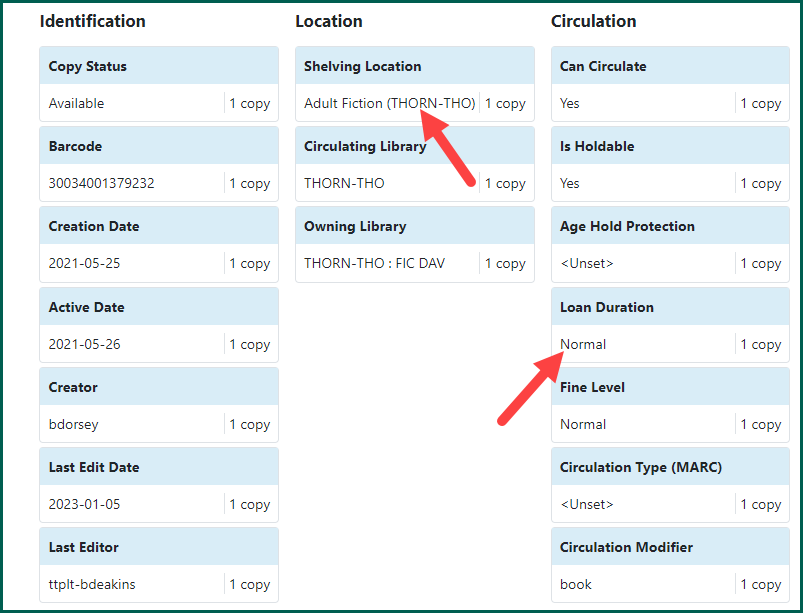
A blank space will appear where you will be able to input text, or choose from a drop-down menu.
Once you’ve selected from the menus or entered new text, click Apply.
Changes applied will now appear in green.
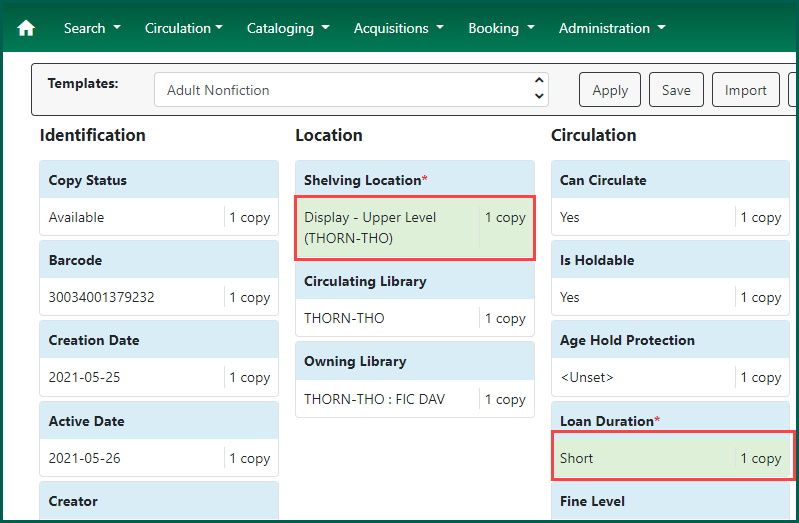
To save your changes, click Apply All, Save & Exit to close the Holdings Editor.
Editing Multiple Items #
You have the option to edit multiple items at one time. They do not have to be the same item. If you are changing the items’ attributes to the same option, you can edit them all at once.
Once the Holdings Editor has opened, you can see the attributes for each selected item.
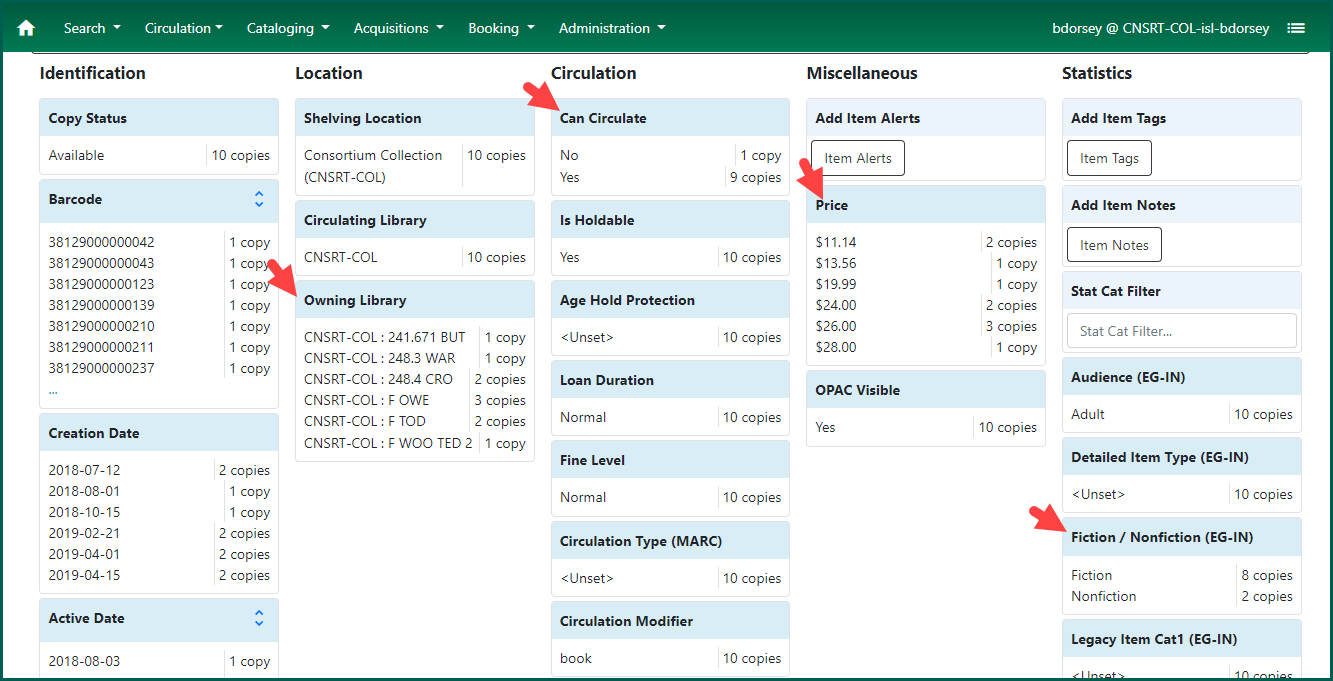
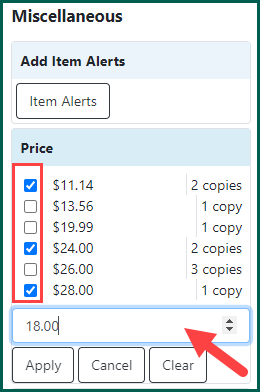
To make changes, select the attribute you wish to edit. Check boxes will appear next to each selection. You may change all of the items, or deselect to only change some. Enter or select the new attribute from the drop down. Click Apply. Your changes will appear in green.
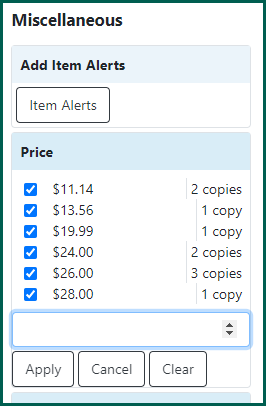
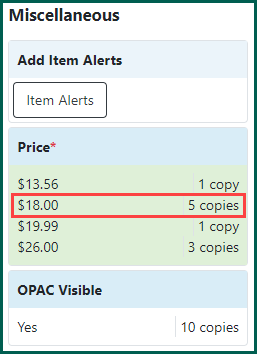
Click Apply All, Save & Exit to save your changes and close the Holdings Editor.