
Administration > Acquisitions Administration > Cancel Reasons
Permission Level: Acquisitions Local Administrator, Purchaser
Access the Cancel Reasons interface by clicking Administration -> Acquisitions Administration -> Cancel Reasons. The Cancel Reasons interface enables you to predefine the reasons for which a Line Item or a Purchase Order can be canceled or delayed. A default list of reasons appears, but you can add custom reasons to the list. Applying the cancel reason will prevent the item from appearing in a claims list and will allow you to cancel debits associated with the purchase. Cancel reasons also enable you to delay a purchase. For example, you could create a cancel reason of “backordered,” and choose to keep the debits associated with the purchase.
Create a cancel/delay reason #
Click New Cancel Reason.
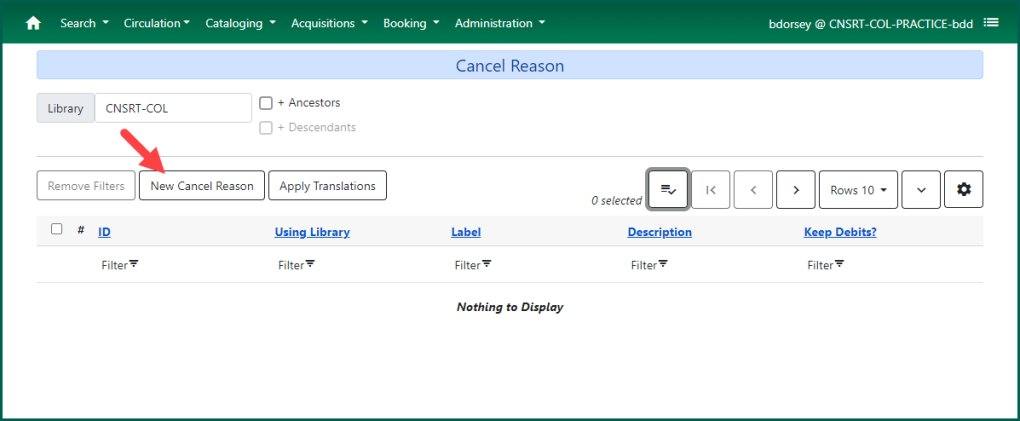
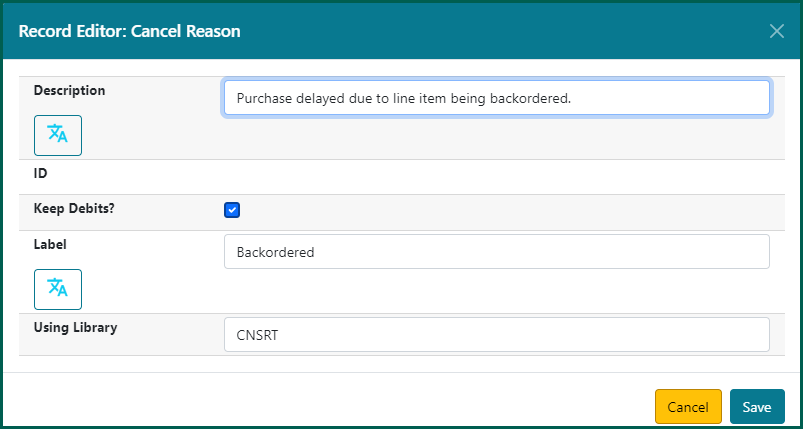
- Select a Using Library from the drop-down menu or enter the library shortcode. The Using Library indicates the organizational units whose staff can use this Cancel Reason.
- Create a label for the Cancel Reason. This label will appear when you select a cancel reason on an Item (in acquisitions) or a Purchase Order.
- Create a description of the Cancel Reason. This is a free text field.
- If you want to retain the debits associated with the canceled/delayed purchase, checkmark the Keep Debits? box.
- Click Save.
Delete a local cancel/delay reason #
You can delete local cancel/delay reasons.
- Select the checkbox for the local cancel/delay reason that will be deleted.
- From the Grid Actions Menu or by right-clicking on the cancel/delay reason, select Delete Selected.
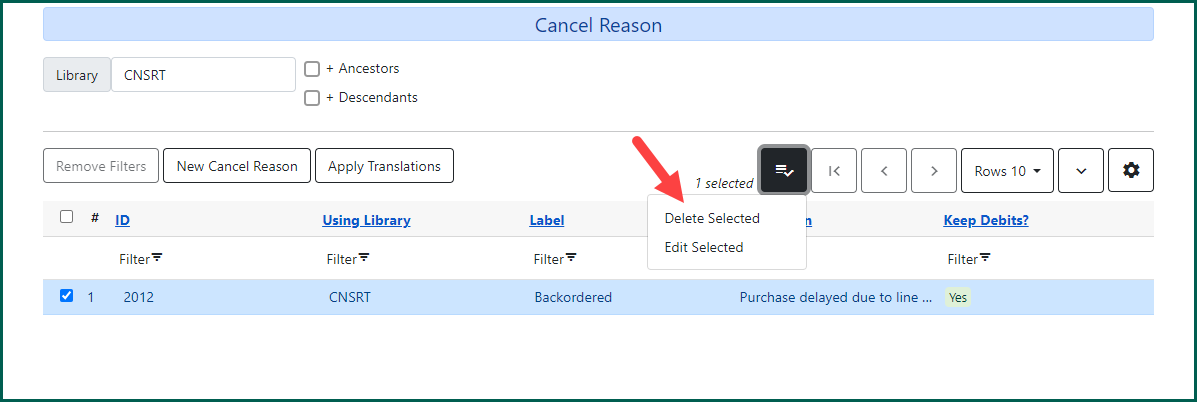
Default cancel reasons cannot be selected for deletion because Evergreen ILS expects those reasons to be available to handle EDI order responses.